What Is a Passkey?
A passkey lets you log in with your fingerprint, face or device code instead of your PIN. It also makes your account more secure.
Faster login, so you never miss a live bet.
How to Set Up a Passkey
Log in and go to My Account, then Manage Account.
Tap Set up passkey.
Confirm with your fingerprint, face or device code.
Done. Next time, tap Log in with a Passkey to log in without a PIN.
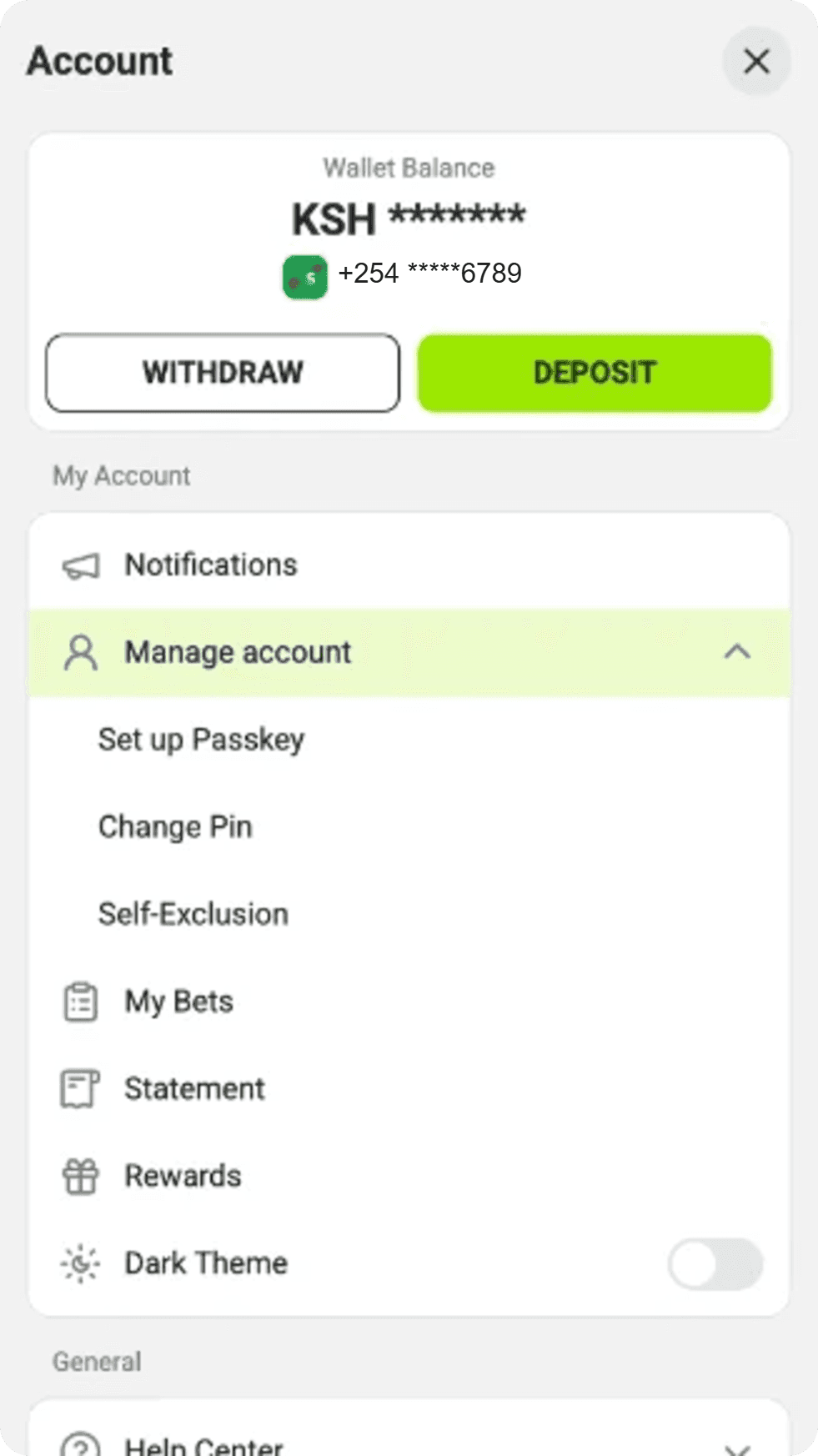 | 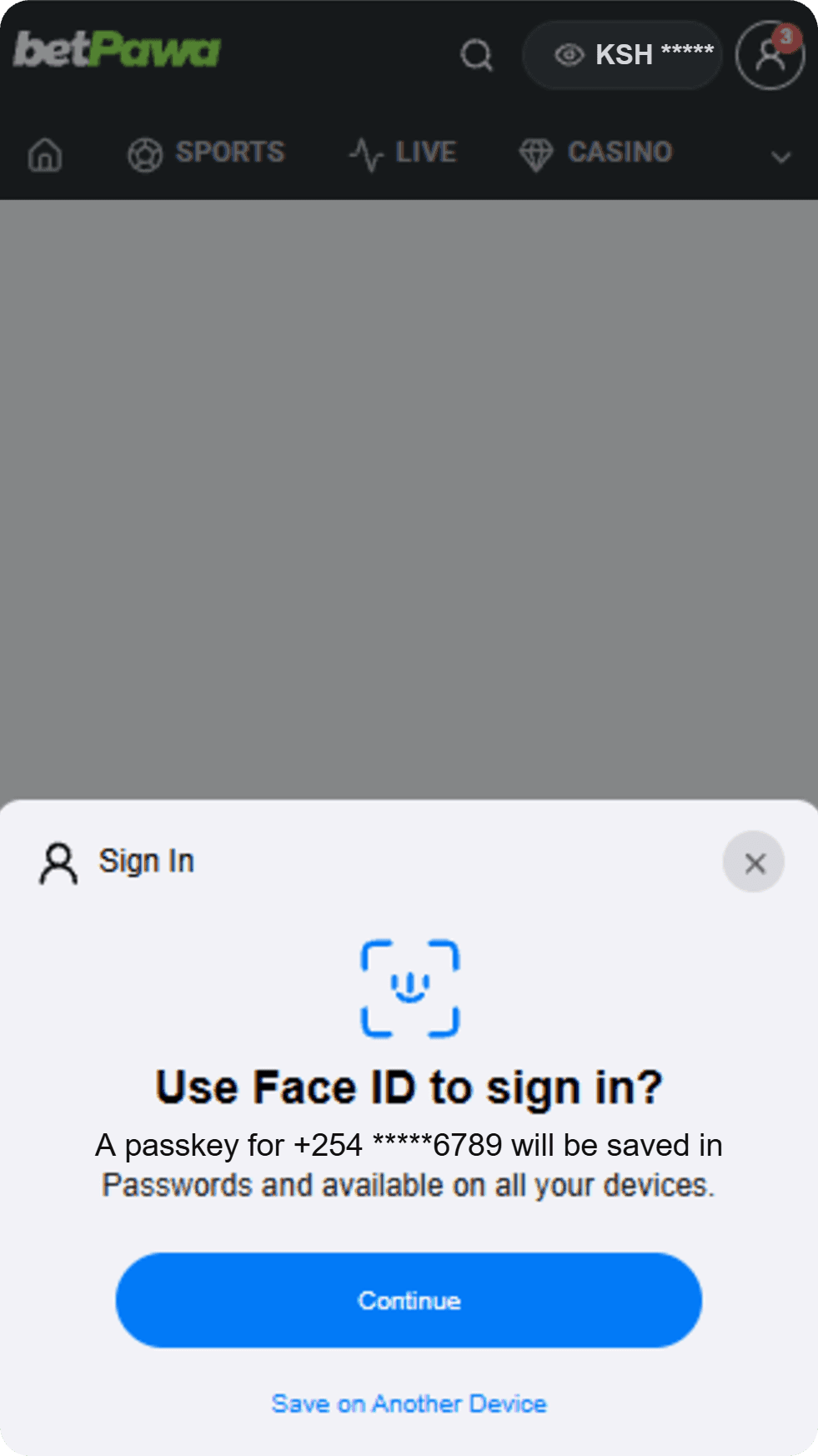 |
Safety and Privacy
Yes. Your passkey stays with you, not with us, and a fake or lookalike site can't steal it.
No. Your scan stays on your device and only unlocks your passkey. We never receive it.
Using Passkeys
iPhone 8 or newer with iOS 16 or later, and most Android phones with Android 9 or later, including Samsung, Google Pixel and Xiaomi.
Yes. Your PIN still works, so you can use either one, for example on an older browser.
Yes. If you use Google Password Manager, iCloud Keychain or 1Password, your passkey syncs across your devices.
Go to My Account, then Manage Account, and open Manage Passkey. Tap the bin icon next to your passkey, and we'll send you a code to confirm it's you.
No, you can only have one at a time. To add a new passkey, remove the old one first.
Lost or Stolen Phone
Your balance stays in your account. On your new phone, sign in to the account where your passkey is saved, like Google, Apple or your password manager, and it'll be there. If it isn't saved there, log in with your PIN, remove the old passkey and set up a new one.
Not with your passkey, as they'd still need your fingerprint, face or device code. To be safe, change your PIN and contact our support team as soon as you can.
Ready? Set up and manage your passkey in My Account.
Still have questions? Head to our Help page.